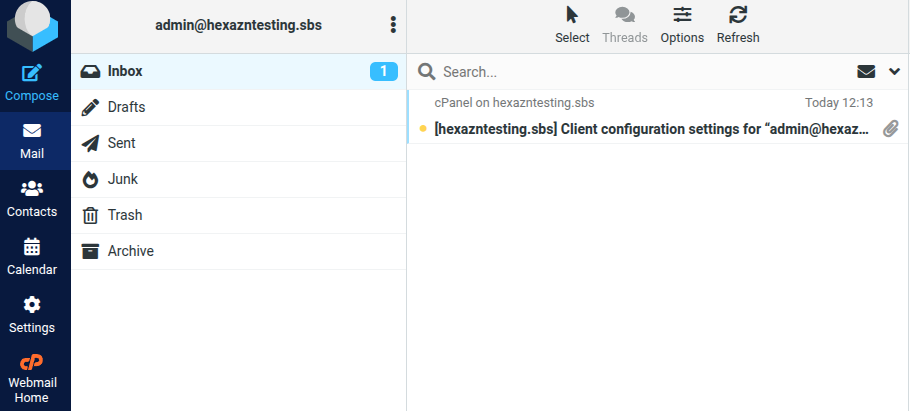
Step 1: Open Email Accounts
Log in to your cPanel account.
Under the Email section, find and click Email Accounts.
You can also use the cPanel search bar and search for Email Accounts.
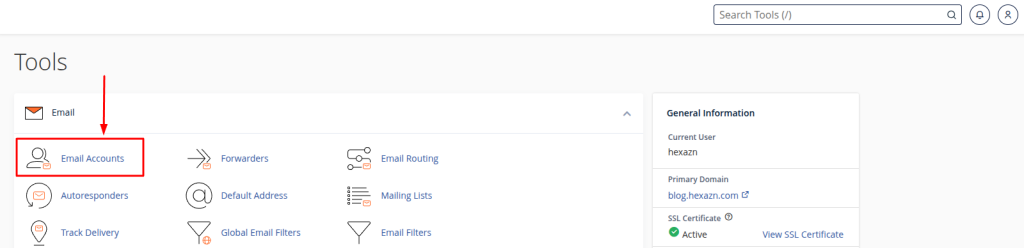
Step 2: Click Create
On the Email Accounts page, you will see your existing email accounts.
Click the + Create button to create a new email account.
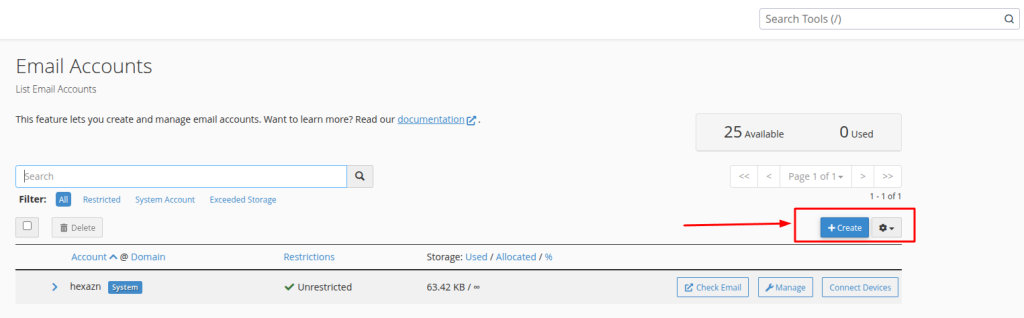
Step 3: Choose the Domain and Email Username
Select the domain you want to use for the email account.
Then enter your preferred Username.
For example, if you enter:
admin
and your domain is: here use your own domain.
hexazntesting.sbs
your new email address will be:
admin@hexazntesting.sbs
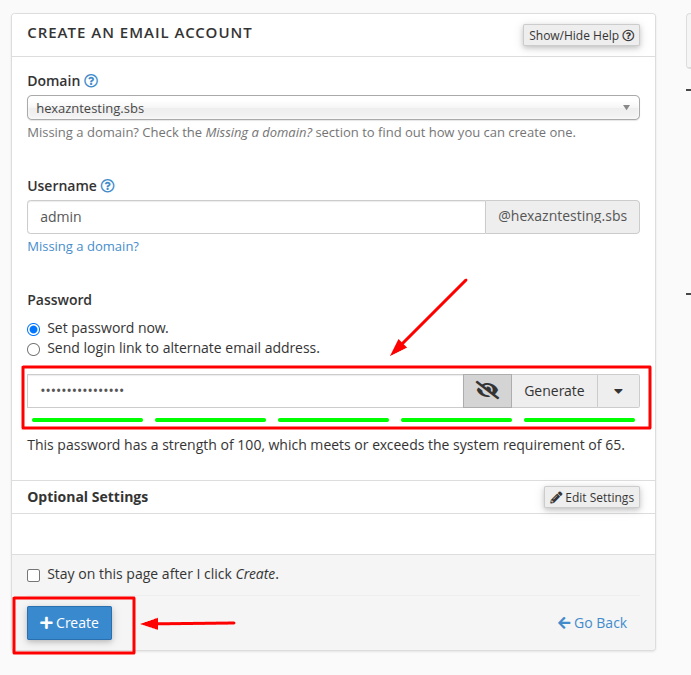
Step 4: Set a Password and Create the Account
Under the Password section, choose Set password now.
Enter a strong password for the email account. You can also use the Generate option to create a strong password automatically.
After setting the password, click + Create.
Your new email account will now be created.
Step 5: Open the Email Account
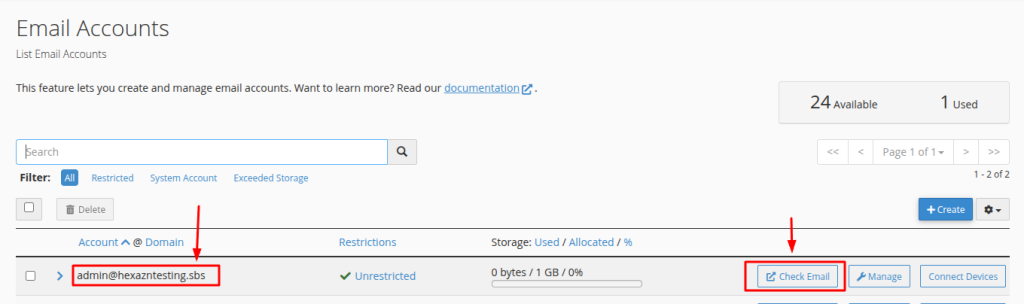
After creating the account, return to the Email Accounts page.
Find the email address you just created and click Check Email.
This will take you to the Webmail page.
Step 6: Open Roundcube Webmail
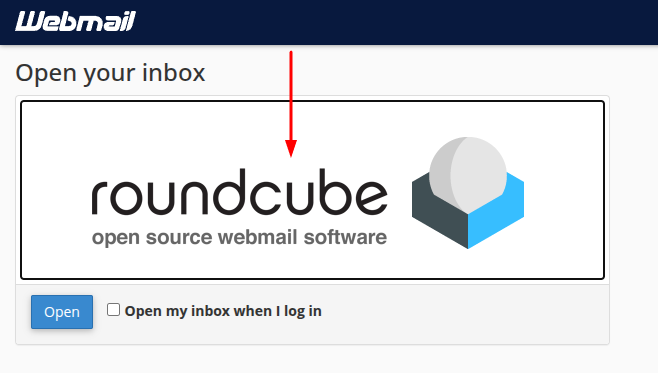
On the Webmail page, you will see Roundcube as the available Webmail application.
Click Open to access your mailbox.
You can also enable Open my inbox when I log in if you want Roundcube to open automatically whenever you access Webmail.
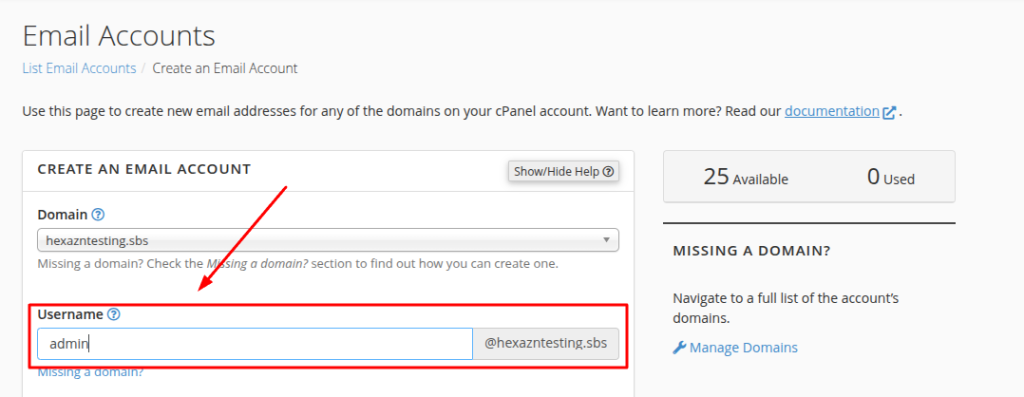
Step 7: Access Your Inbox