Changing the PHP version in cPanel is simple and can be done in just a few steps. Follow the instructions below to update the PHP version for your hosting account or a specific domain.
Step 1: Open Select PHP Version
Log in to your cPanel account.
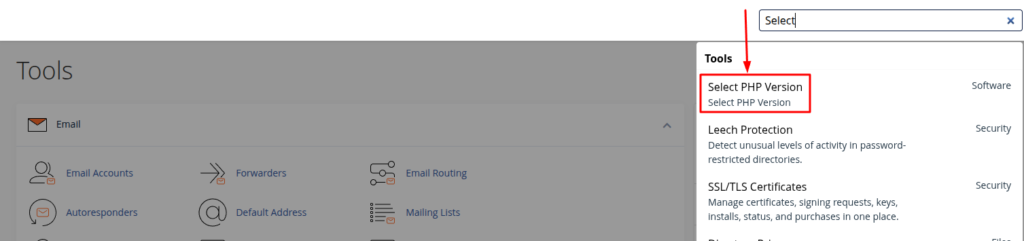
Use the search bar at the top of the cPanel dashboard and search for:
Select PHP Version
Then click Select PHP Version from the search results.
Step 2: Choose Your Preferred PHP Version
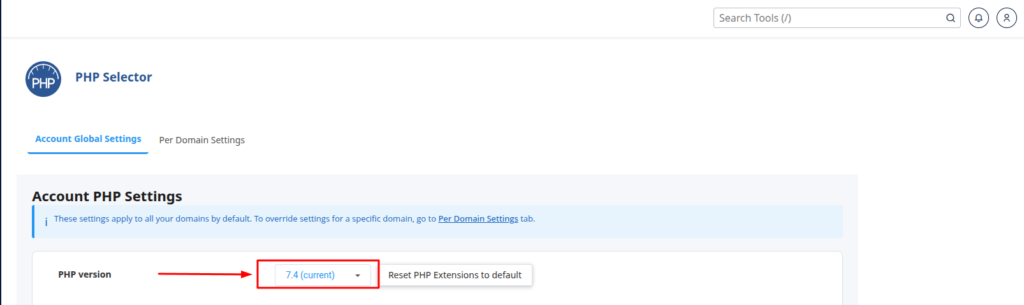
On the PHP Selector page, you will see your current PHP version under Account PHP Settings.
Click the PHP Version dropdown menu and select the PHP version you want to use.
For example:
- PHP 8.1
- PHP 8.2
- PHP 8.3
Choose a version that is compatible with your website, application, plugins, and themes.
Step 3: Apply the New PHP Version
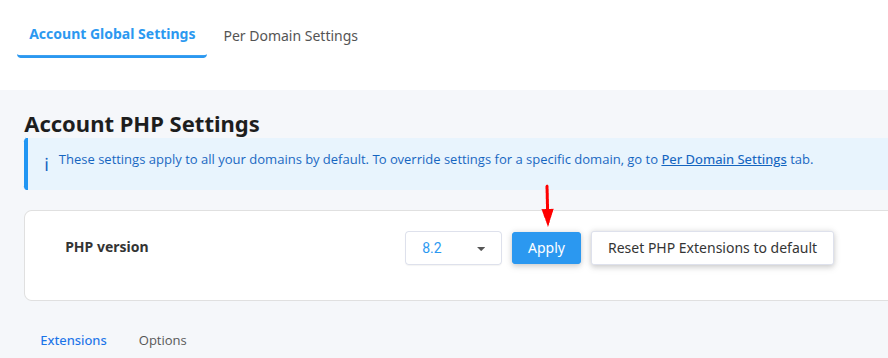
After selecting your preferred PHP version, click the Apply button.
The selected PHP version will now be applied to your account.
Your PHP version has been successfully changed.
Step 4: If You Want to Use MultiPHP Manager
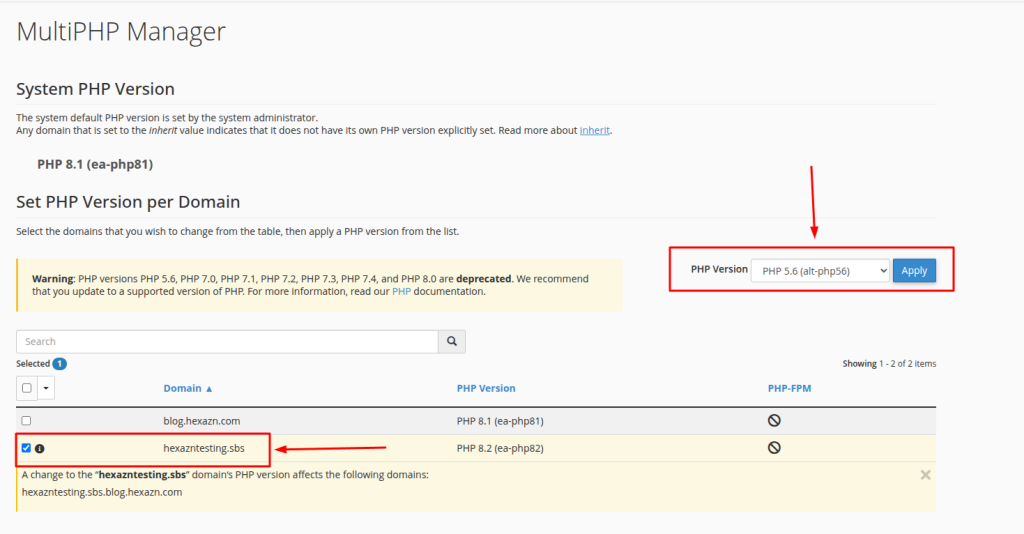
If you prefer, you can also change the PHP version using MultiPHP Manager.Return to the cPanel dashboard and search for:MultiPHP Manager.
Then click MultiPHP Manager from the search results

Step 5: Change PHP Version for a Specific Domain
Inside MultiPHP Manager, you will see a list of domains connected to your cPanel account.
- Select the domain whose PHP version you want to change.
- Choose your preferred version from the PHP Version dropdown.
- Click Apply.
The selected PHP version will now be assigned to that domain.