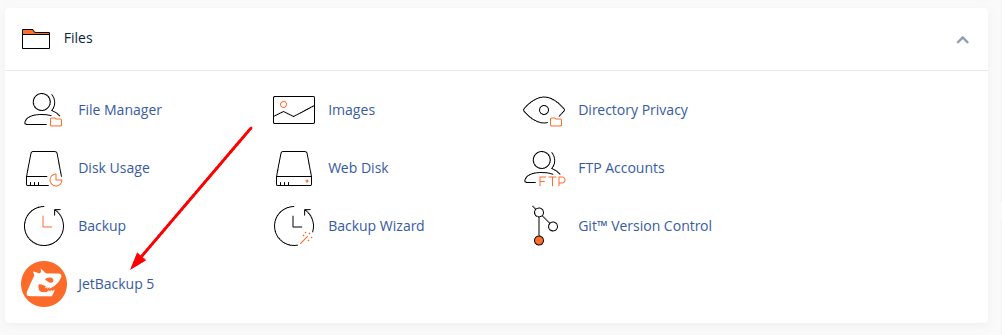
Step 1: Open JetBackup 5
First, log in to your cPanel account and open JetBackup 5 from the dashboard.
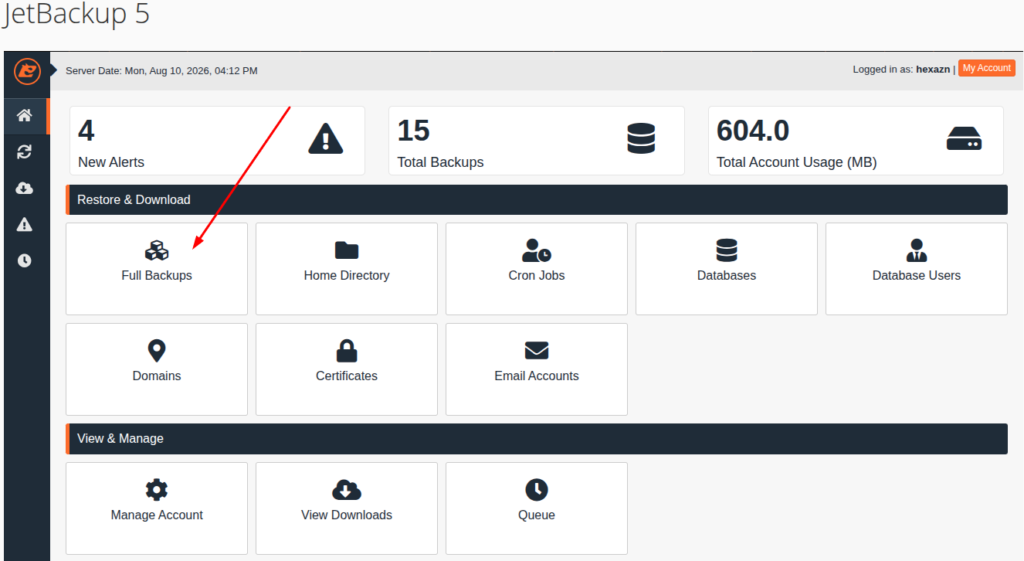
Step 2: Go to Full Backups
Inside JetBackup 5, click on Full Backups to view the available backup copies of your account.
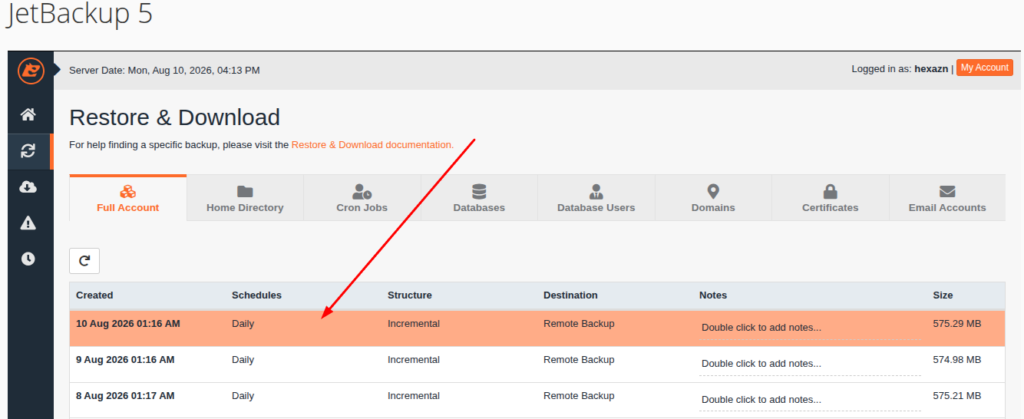
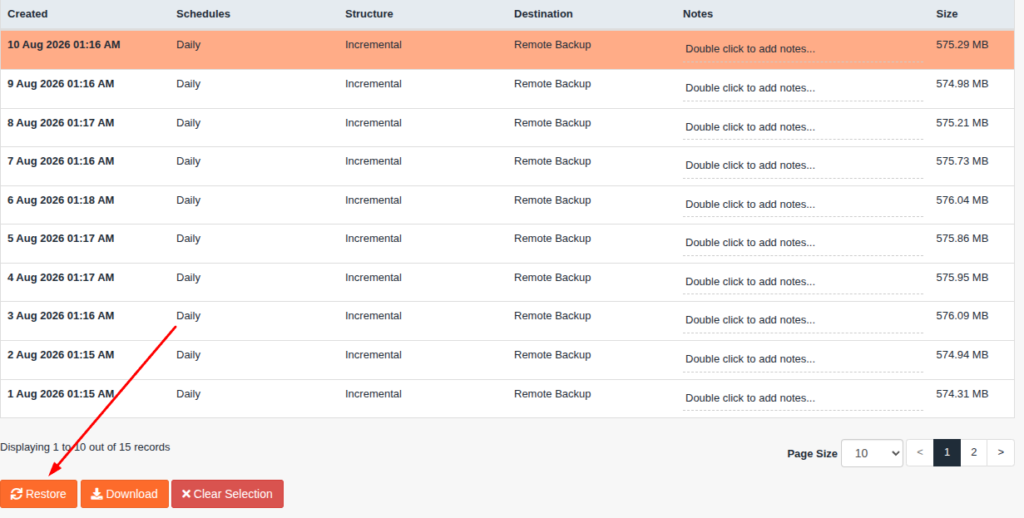
Step 3: Select the Backup You Want to Restore
Choose the backup date or backup file that you want to restore. Make sure you select the correct backup before continuing.
Step 4: Click the Restore Button
After selecting the backup, click the Restore button to start the restore process.
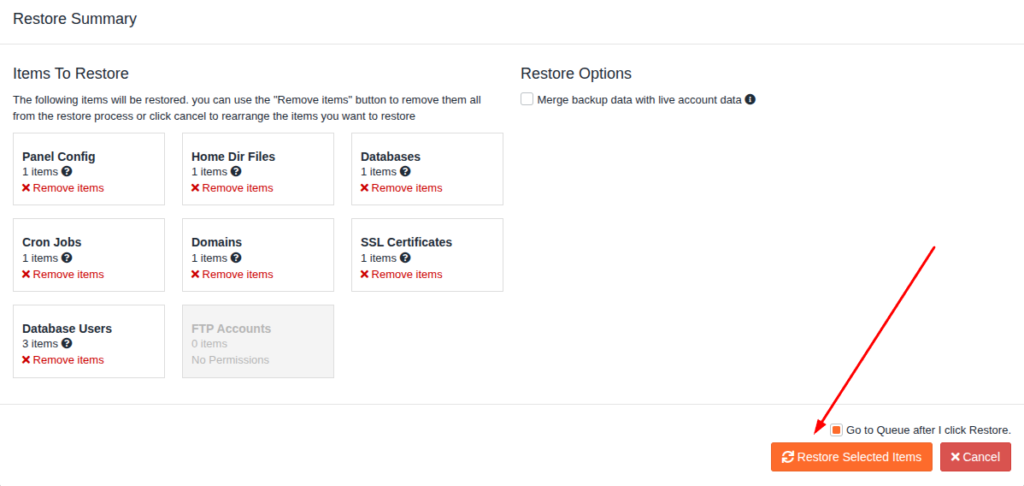
Step 5: Click “Restore Selected Items”
Review the selected backup items, then click Restore Selected Items to confirm. JetBackup will then start restoring your backup.